
Help & Support

3. Read the SOPs
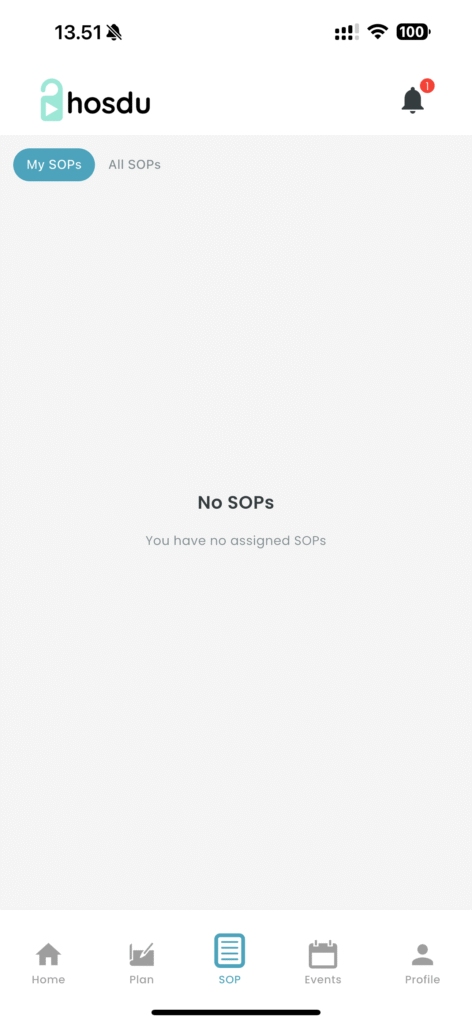
1. Open the SOP page in the app. If this view is empty, that means you have no assigned SOPs. Wait for you manager to assign/add SOPs for you.
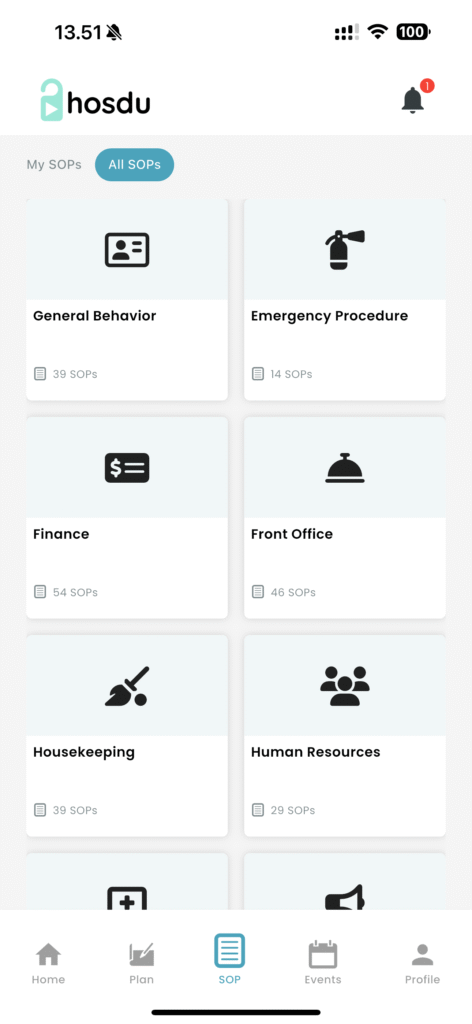
2. In “All SOPs”, you can find all the SOPs in the organization. They are all devided in department, so you can easily find relevant SOP.
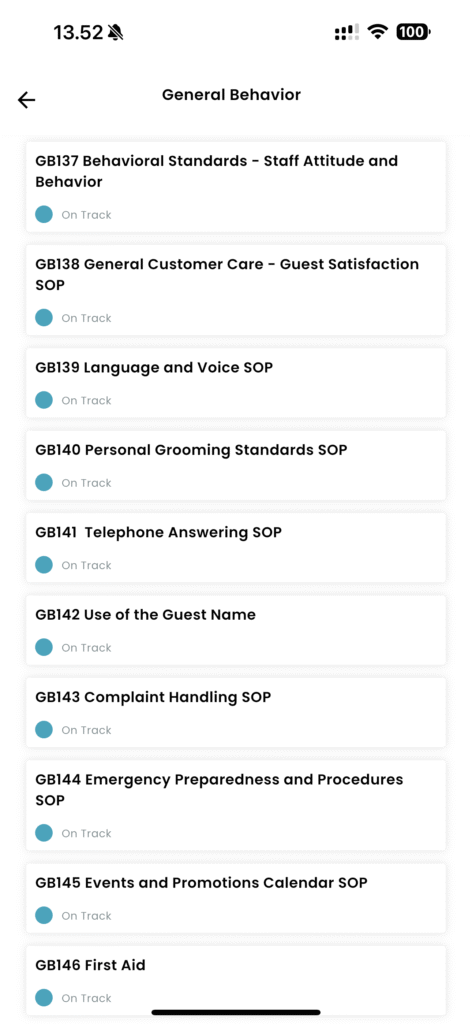
3. Click on the department and see a list of SOPs
4. Click on single SOP and read the content
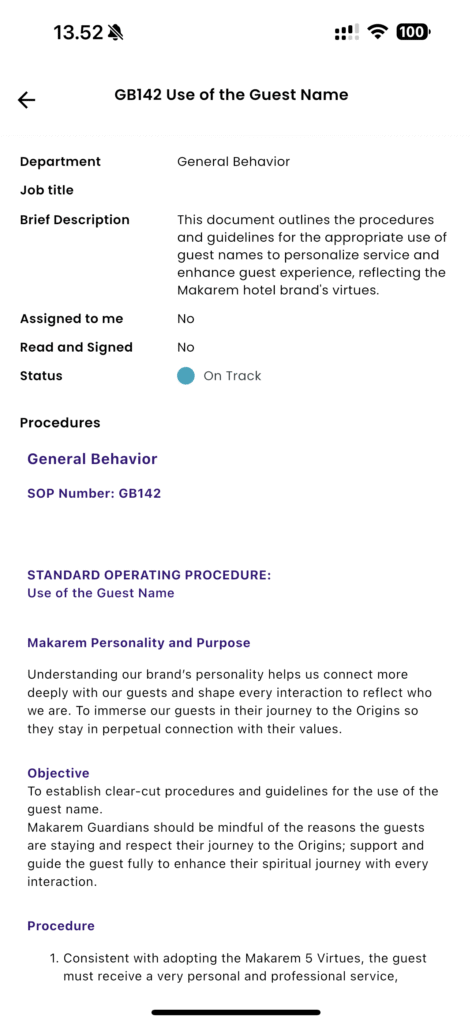
5. IMPORTANT. If you have assigned SOPs, you can below the SOP find “Read and Sign”